Need More Info
Last Updated: 12 Jun 2026 10:51 by ADMIN

Mahesh
Created on: 09 Jun 2026 09:24
Category: Reporting
Type: Bug Report
1
DateTime calue format is not working properly when exported to CSV

Hi Team,


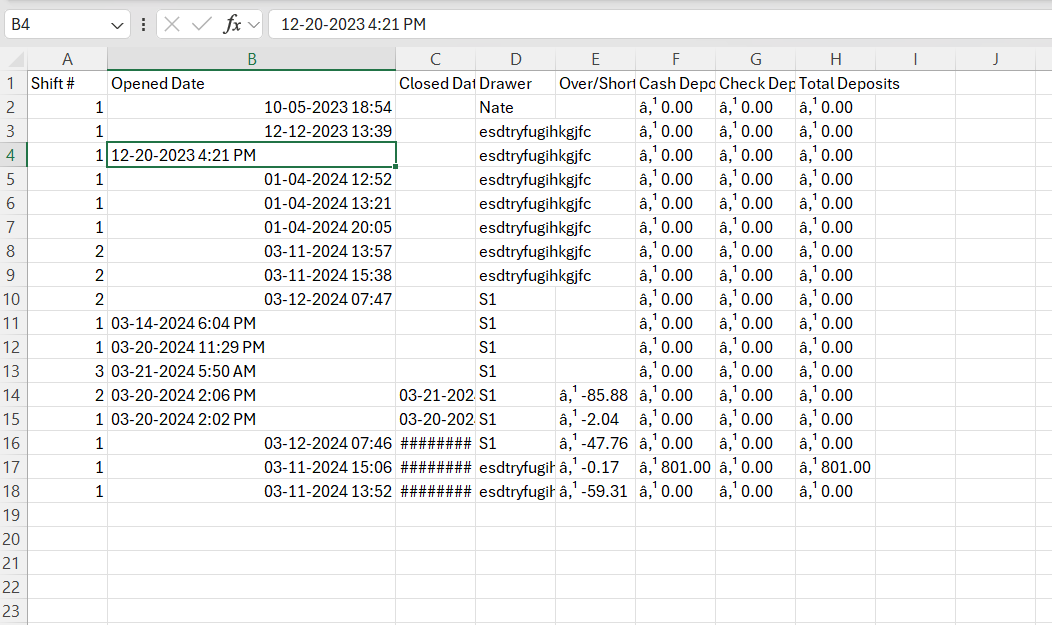
Even after giving the date format facing the inconsistency in the date field for some rows in the table when we export it to CSV file

<TextBox Width="1.036in" Height="0.24in" Left="0in" Top="0in" Value="= Fields.StartDate" Format="{0:MM'/'dd'/'yyyy h:mm tt}" Name="Opened Date">. please see the attachment
3 comments
ADMIN
Dimitar
Posted on: 12 Jun 2026 10:51

Hello Mahesh,

Thank you for the new screenshot!

Yes, now I can see the inconsistency. I tried to reproduce the issue locally, but was unsuccessful.

However, one possible explanation for the problem would be that some rows in the data source have Fields.StartDate arriving as a DateTime object (→ the engine formats it → AM/PM shown), while others arrive as a string like "10-05-2023 18:54" (→ formatting is skipped→ no AM/PM)

Could you please send a sample report with data included where the issue is reproducible? I would suggest opening a private ticket thread for that. I can also create the thread on your behalf if you would prefer that.

Additionally, please test with the latest version of the product to confirm that the issue is not in an older version only.

I look forward to your next update.

Regards,
Dimitar
Progress Telerik

Love the Telerik and Kendo UI products and believe more people should try them? Invite a fellow developer to become a Progress customer and each of you can get a $50 Amazon gift voucher.

Mahesh
Posted on: 12 Jun 2026 05:32

do you see the inconsistency in the date some are showing fine and other row don't show AM PM.


ADMIN
Dimitar
Posted on: 11 Jun 2026 15:03

Hi Maheesh,

Thank you for the screenshot!

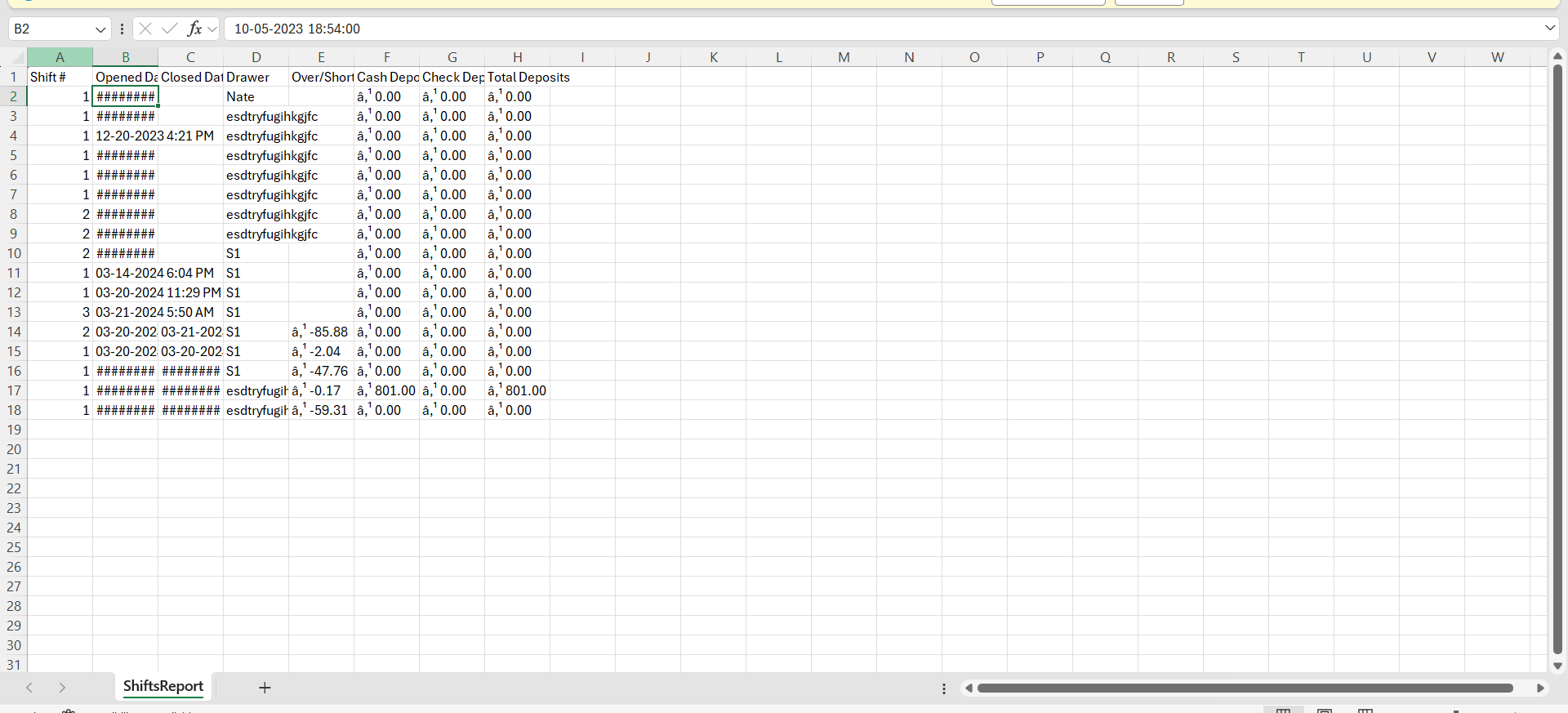
By inconsistency, do you mean the multiple "#" symbols displayed on some of the rows in the images? If so, please keep in mind that this is an Excel-controlled behavior.

When a cell is formatted as a date/time (or a number), and the column isn't wide enough to display the entire value, Excel shows a series of ##### characters instead.

There are a couple of ways to fix that in the Excel application, such as

  • Auto-fit the column width
    • Select the column(s).
    • Double-click the right border of the column header.
    • Excel automatically adjusts the width.
  • Use a shorter date format
    • Select the column.
    • Right-click → Format CellsDate or Custom.
    • Use a format such as:
      • yyyy-mm-dd
      • dd/mm/yyyy
      • m/d/yy
  • Format the Date as a String

    • You also have the option to format the DateTime field as a string in the expression of the textbox item, which means that Excel won't treat it as a DateTime and hide it with the # symbols. For example: '{Now().ToString("dd/MM/yyyy")}'

    • Replace "Now" with your date field, but keep the quote strings around the expression. Otherwise, Excel will still detect it as a date.

Please try the suggestions, and if you need further assistance, please feel free to open a support ticket where you may go into more detail about the issue, and also send us a sample report where the issue is reproducible.

Regards,
Dimitar
Progress Telerik

Love the Telerik and Kendo UI products and believe more people should try them? Invite a fellow developer to become a Progress customer and each of you can get a $50 Amazon gift voucher.