

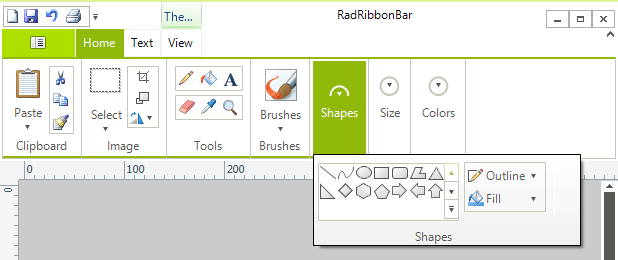
When a form's width is reduced enough then some groups in ribbon bar will become collapsed and in group's place a drop-down arrow is shown. When this arrow is clicked it will show properly its active state in all themes except three Metro themes. In Metro themes arrow's active state is such that only upper half of the control is visible. The issue is shown in current documentation for RadRibbonBar in the following image:

In RadDropDownListElement add two DescriptionTextListDataItem:
radDropDownListElementFoo.Items.Add(new DescriptionTextListDataItem("Foo 1", "Description 1"));
radDropDownListElementFoo.Items.Add(new DescriptionTextListDataItem("Foo 2", "Description 2"));
But the description is not displayed and the drop down height is too large (foo.png)
What am I doing wrong?
If change ItemHeight = 36, then description is displayed, but the drop down height is too large (foo36.png)

To reproduce:
Open a form with a ribbon, focus the tabs and press 1 with the screen keyboard (German language).

Workaround:
class MyRibbon : RadRibbonBar
{
    protected override ComponentInputBehavior CreateBehavior()
    {

        return new MyComponentBehavior(this);
    }
    public override string ThemeClassName
    {
        get { return typeof(RadRibbonBar).FullName; }
    }
}
class MyComponentBehavior : RibbonBarInputBehavior
{
    public MyComponentBehavior(RadRibbonBar owner) : base(owner)
    {

    }
    protected override string GetKeyStringRepresentation(Keys input)
    {
        uint nonVirtualKey = NativeMethods.MapVirtualKey((uint)input, 2);

        if (nonVirtualKey > char.MaxValue)
        {
            return null;
        }

        return base.GetKeyStringRepresentation(input);
    }
}
To reproduce:
- Add a RadToggleButtonElement to the quick access toolbar.

Workaround:
RadToggleButton button = new RadToggleButton();
button.Text = "Test";
button.Height = 17;

RadHostItem host = new RadHostItem(button);
host.MinSize = new Size(50, 0);
host.MaxSize = new Size(0, 17);
host.StretchVertically = false;

radRibbonBar1.QuickAccessToolBarItems.Add(host);

1. Place a RadRibbonBar on a form

2. Add couple of New Tabs

3. Select a tab in Design Time

4. You will see that the current tab is not switched

Note that you can switch to a different tab if you click it 3 times or if you fast click twice on a tab and then select another tab.
To reproduce: please refer to the attached sample project and gif file.

Workaround:  this.radRibbonBar1.RibbonBarElement.ApplicationButtonElement.DropDownOpened+=ApplicationButtonElement_DropDownOpened;

 private void ApplicationButtonElement_DropDownOpened(object sender, EventArgs e)
        {
            foreach (RadItem item in this.radRibbonBar1.RibbonBarElement.ApplicationButtonElement.DropDownMenu.Items)
            {
                RadMenuItem menuItem = item as RadMenuItem;
                if (menuItem!=null)
                {
                    menuItem.MinSize = new Size(item.Size.Width, 24);
                }

            }
        }

Workaround: this.radDropDownButtonElement1.ActionButton.TextElement.TextRenderingHint = System.Drawing.Text.TextRenderingHint.AntiAliasGridFit;
To reproduce: please run the attached sample project and follow the steps from the gif file.

Workaround: close the popup before showing the message or the dialog:


        private void radButtonElement1_Click(object sender, EventArgs e)
        {
              if (!radRibbonBar1.Expanded)
            {
                this.radRibbonBar1.RibbonBarElement.Popup.ClosePopup(Telerik.WinControls.UI.RadPopupCloseReason.Mouse);
            }
            RadMessageBox.Show("Test");
        }

How to reproduce:  subcribe to the Click event handled of a RadSplitButtonElement added to a certain group in RadRibbonBar, notice that when you click on the button the event will fire two times

Workaround:
bool cancel;
private void radSplitButtonElement1_Click(object sender, EventArgs e)
{
    if (!cancel)
    {
        //Handle Click event;
        this.cancel = true;
        return;
    }

    this.cancel = false;
}
To reproduce: click the application menu drop down to open the backstage view. Then, click the button again to close it. You will notice that the BackstageViewClosing/BackstageViewClosed events are fired twice
The new functionality should provide a way to apply an offset to the position of the key tip as well as customize their back and fore colors as well as the font
Use the arrow on the right side of RadRibbonBar to collapse it. When click some of the tabs to show the popup.

Workaround: specify a minimum height for the popup:
        protected override void OnLoad(EventArgs e)
  {
            base.OnLoad(e);
            radRibbonBar1.Expanded = false;

            RibbonBarPopup pop = this.radRibbonBar1.RibbonBarElement.Popup;
            pop.PopupOpened += pop_PopupOpened;
        }

        private void pop_PopupOpened(object sender, EventArgs args)
        {
            RibbonBarPopup pop = sender as RibbonBarPopup;
            pop.MinimumSize = new Size(0, 150);
        }
Use attached project to reproduce.

Workaround
radRibbonBar1.StartMenuItems.RemoveAt(0);
To reproduce:

LightVisualElement caption = new LightVisualElement();
caption.MinSize = new Size(150, 20);
caption.DrawText = true;
caption.DrawImage = true;
caption.TextImageRelation = TextImageRelation.ImageBeforeText;
caption.Text = "My Application";
caption.Image = Image.FromFile(@"..\..\delete.png");
caption.ShouldHandleMouseInput = false;
caption.NotifyParentOnMouseInput = true;
caption.ImageLayout = ImageLayout.None;
caption.ImageAlignment = ContentAlignment.TopLeft;
caption.TextAlignment = ContentAlignment.TopLeft;
this.radRibbonBar1.RibbonBarElement.RibbonCaption.CaptionLayout.Children.Add(caption);
How to reproduce: just create a ribbon form with many collapsed ribbon bar groups, e.g. 20 and try to resize the form:

Workaround: change all RadRibbonBarGrpoup instances with the custom class below
public class MyRadRibbonBarGroup : RadRibbonBarGroup
{
    override public bool ExpandElementToStep(int collapseStep)
    {
        bool result = false;
        if (!this.CanCollapseOrExpandElement(ChunkVisibilityState.Expanded))
        {
            return result;
        }

        this.InvalidateIfNeeded();

        if (this.CollapseStep == (int)ChunkVisibilityState.Collapsed)
        {
            this.ExpandChunkFromDropDown();
            --this.CollapseStep;
            result = true;
            this.CollapseCollection((int)ChunkVisibilityState.NoText);
        }
        else
        {
            result = this.ExpandCollection(collapseStep);
        }

        return result;
    }

    private void ExpandChunkFromDropDown()
    {
        this.DropDownElement.Visibility = ElementVisibility.Collapsed;
        this.DropDownElement.Items.Clear();

        ElementWithCaptionLayoutPanel el = (ElementWithCaptionLayoutPanel)typeof(RadRibbonBarGroup).GetField("elementWithCaptionLayoutPanel", BindingFlags.Instance | BindingFlags.NonPublic).GetValue(this);

        this.Children.Add(el);
    }

    private bool CanCollapseOrExpandElement(ChunkVisibilityState state)
    {
        if (this.IsDesignMode)
        {
            return false;
        }

        return true;
    }
}
The issue can be reproduced after creating ribbon groups with buttons having large pictures and TextImageRelation set to ImageAboveText

Workaround: handle the DropDownOpened event of the buttons and set a MaxSize to the ElementWithCaptionLayoutPanel child
public Form1()
{
    InitializeComponent();

    //Workaround
    this.radRibbonBarGroup1.DropDownElement.DropDownOpened += DropDownElement_DropDownOpened;
    this.radRibbonBarGroup2.DropDownElement.DropDownOpened += DropDownElement_DropDownOpened;
    this.radRibbonBarGroup3.DropDownElement.DropDownOpened += DropDownElement_DropDownOpened;
}

private void DropDownElement_DropDownOpened(object sender, EventArgs e)
{
    RadRibbonBarGroupDropDownButtonElement element = (RadRibbonBarGroupDropDownButtonElement)sender;
    RadRibbonBarGroupDropDownMenuElement menuElement = (RadRibbonBarGroupDropDownMenuElement)element.DropDownMenu.PopupElement;
    ElementWithCaptionLayoutPanel layoutPanel = menuElement.Layout.FindDescendant<ElementWithCaptionLayoutPanel>();
    menuElement.Layout.FindDescendant<ElementWithCaptionLayoutPanel>().MaxSize = new Size(0, 77);
}
To reproduce:
- Add complex controls to the backstage pages (add at least 4 pages).
- Change the pages at runtime.

Workaround:
Private Sub RadRibbonBarBackstageView1_BackstageViewOpening(sender As Object, e As System.ComponentModel.CancelEventArgs) Handles RadRibbonBarBackstageView1.BackstageViewOpening
    BackstageViewPage1.Visible = True
    BackstageViewPage2.Visible = True
    BackstageViewPage3.Visible = True
    BackstageViewPage4.Visible = True
End Sub
How to reproduce: the issue is only reproducible in client`s environment, Windows 10 build 1607
Public Class Form1

    Sub New()
        InitializeComponent()

    End Sub

    Protected Overrides Sub OnLoad(e As EventArgs)
        MyBase.OnLoad(e)

        Me.RadGalleryElement1.MaxRows = 1

        For i As Integer = 0 To 149
            Dim blueItem1 As New RadGalleryItem("", My.Resources.RibbonBar_GettingStarted_CreatingAGallery001)
            Me.RadGalleryElement1.Items.Add(blueItem1)
        Next
    End Sub

End Class

Workaround:
Public Class Form1

    Sub New()
        InitializeComponent()

        AddHandler Me.RadGalleryElement1.DropDownOpening, AddressOf RadGalleryElement1_DropDownOpening

    End Sub

    Protected Overrides Sub OnLoad(e As EventArgs)
        MyBase.OnLoad(e)

        Me.RadGalleryElement1.MaxRows = 1

        For i As Integer = 0 To 149
            Dim blueItem1 As New RadGalleryItem("", My.Resources.RibbonBar_GettingStarted_CreatingAGallery001)
            Me.RadGalleryElement1.Items.Add(blueItem1)
        Next
    End Sub

    Private Sub RadGalleryElement1_DropDownOpening(sender As Object, e As System.ComponentModel.CancelEventArgs)
        Dim gallery = DirectCast(sender, RadGalleryElement)
        Dim popup = gallery.GalleryDropDown.PopupElement
        Dim wa = Screen.PrimaryScreen
        popup.Children(0).MaxSize = New Size(0, wa.Bounds.Height)

    End Sub

End Class