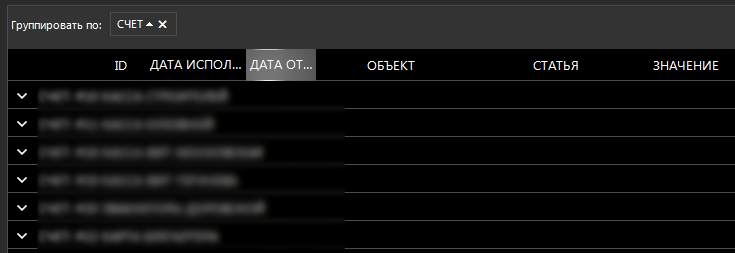
Hi. it was great to see the option "ImageOnly", for columns of small width, where only the image is placed in the header, and the "HederText" property was set, for the correct display of the grouping field
GridViewDataColumn column;

column.HeaderText = "Счет";

column.HeaderImage = ...; // some img

column.TextImageRelation = TextImageRelation.Overlay;
GridViewDataColumn column;

column.HeaderText = "";

column.HeaderImage = ...; // some img

column.TextImageRelation = TextImageRelation.Overlay;
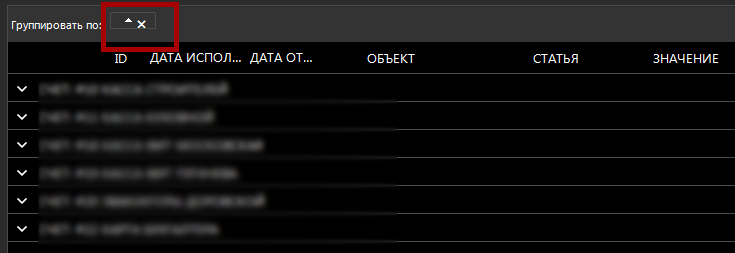
it’s impossible to choose one thing, either an ugly header, or a grouping without a description

When the RadGridView AutoSize property is set to true and a row is expanded, an exception is thrown:
System.InvalidOperationException: 'MeasureOverride returned positive infinity: Telerik.WinControls.UI.GridDetailViewRowElement'
A possible workaround is to replace the GridDetailViewRowElement with your own class. Then overriding the MeasureOverride method we can pass valid size to the element.
private void RadGridView1_CreateRow(object sender, GridViewCreateRowEventArgs e)
{
    if (e.RowInfo is GridViewDetailsRowInfo)
    {
        e.RowElement = new MyGridDetailViewRowElement();
    }
}

public class MyGridDetailViewRowElement : GridDetailViewRowElement
{
    protected override SizeF MeasureOverride(SizeF availableSize)
    {
        var baseSize =  base.MeasureOverride(availableSize);
        if(baseSize.Width == float.PositiveInfinity)
        {
            baseSize.Width = 800;
        }
        return baseSize;
    }
}
Steps to reproduce:
1.Run the attached sample project.
2.Group by the ProductID column
3.Select Page 4
4. Expand the top group row. You will notice that the grid jumps to a previous row.
Expected:
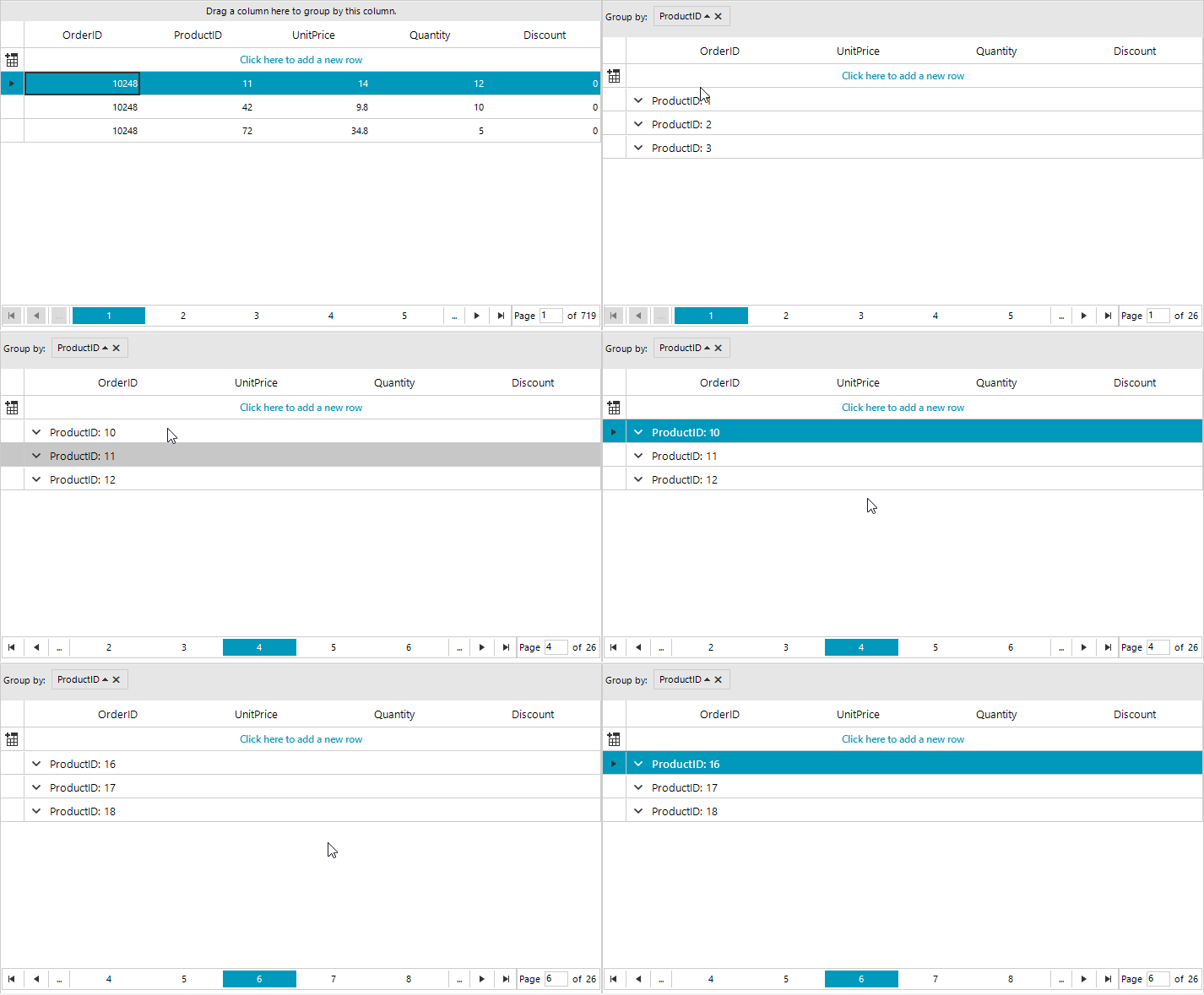
Actual:
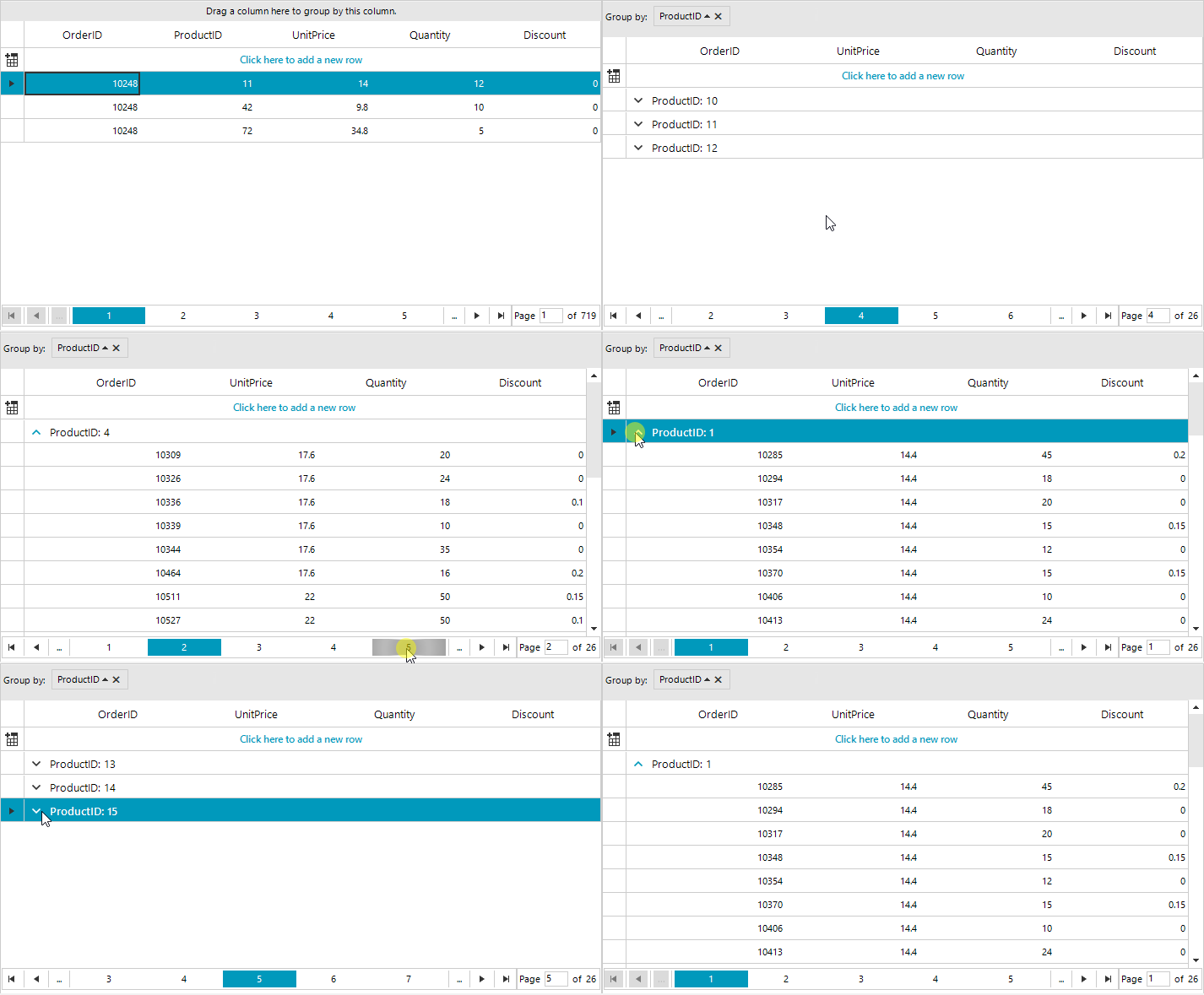
Workaround:
        public class CustomGrid : RadGridView
        {
            public override string ThemeClassName
            {
                get
                {
                    return typeof(RadGridView).FullName;
                }
            }
            protected override void OnMouseDown(MouseEventArgs e)
            {
                GridExpanderItem expander = this.ElementTree.GetElementAtPoint(e.Location) as GridExpanderItem;
                if (expander != null)
                {
                    flag = true;
                }
                base.OnMouseDown(e);
            }

            protected override void OnMouseUp(MouseEventArgs e)
            {
                base.OnMouseUp(e);
                flag = false;
            }

            bool flag = false;

            protected override void OnPageChanging(object sender, PageChangingEventArgs e)
            {
                if (flag)
                {
                    e.Cancel = true;
                }
                base.OnPageChanging(sender, e);

            }
        }

Eery time I use the GridView, I have to remember to un-select the last item in the list.
This is almost always to wrong thing to be selected - so why select it by default?
..and the way to swith this 'feaure' off isn't obvious - I always have to look it up....RadGridView1.CurrentRow = Nothing
Please refer to the below gif file. You will notice that the drop row line is shown only when dropping in the same grip but not when dropping on another grid:
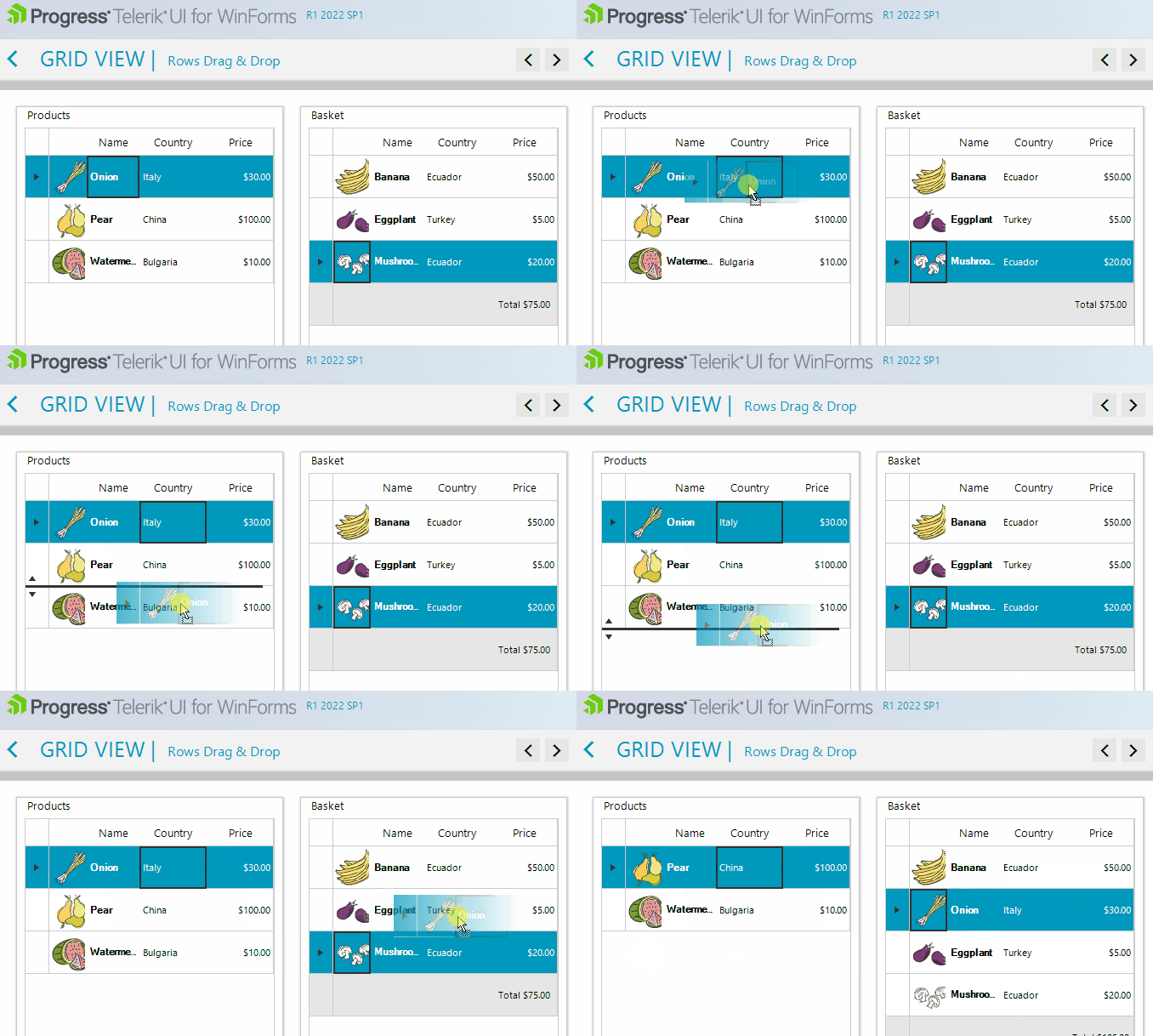
Workaround: use the project in the following forum post: https://www.telerik.com/forums/preview-drop---drag-drop-between-gridview#5477699
Use the following code:
        public RadForm1()
        {
            InitializeComponent();

            DataTable dt = new DataTable();
            dt.Columns.Add("Id");
            dt.Columns.Add("Name");
            for (int i = 0; i < 10; i++)
            {
                dt.Rows.Add(i, "Item" + i);
            }
            this.radGridView1.DataSource = dt;
            this.radGridView1.AutoSizeColumnsMode = GridViewAutoSizeColumnsMode.Fill;

            this.radGridView1.CellValidating += radGridView1_CellValidating;
        }

        private void radGridView1_CellValidating(object sender, CellValidatingEventArgs e)
        {
            if (e.Column.Index == 0 && e.ActiveEditor != null && e.Value + "" == "1")
            {
                e.Cancel = true;
                RadMessageBox.Show("IncorrectValue");
            }
        }
Follow the steps:
1. Scroll to the last row.
2. Enter value "1" in the first cell of the last row
3. Click the area above the scrollbar's thumb to trigger scrolling to the top. You will notice that the message box will be shown and the view will be scrolled. Once the message is closed, the error occurs.
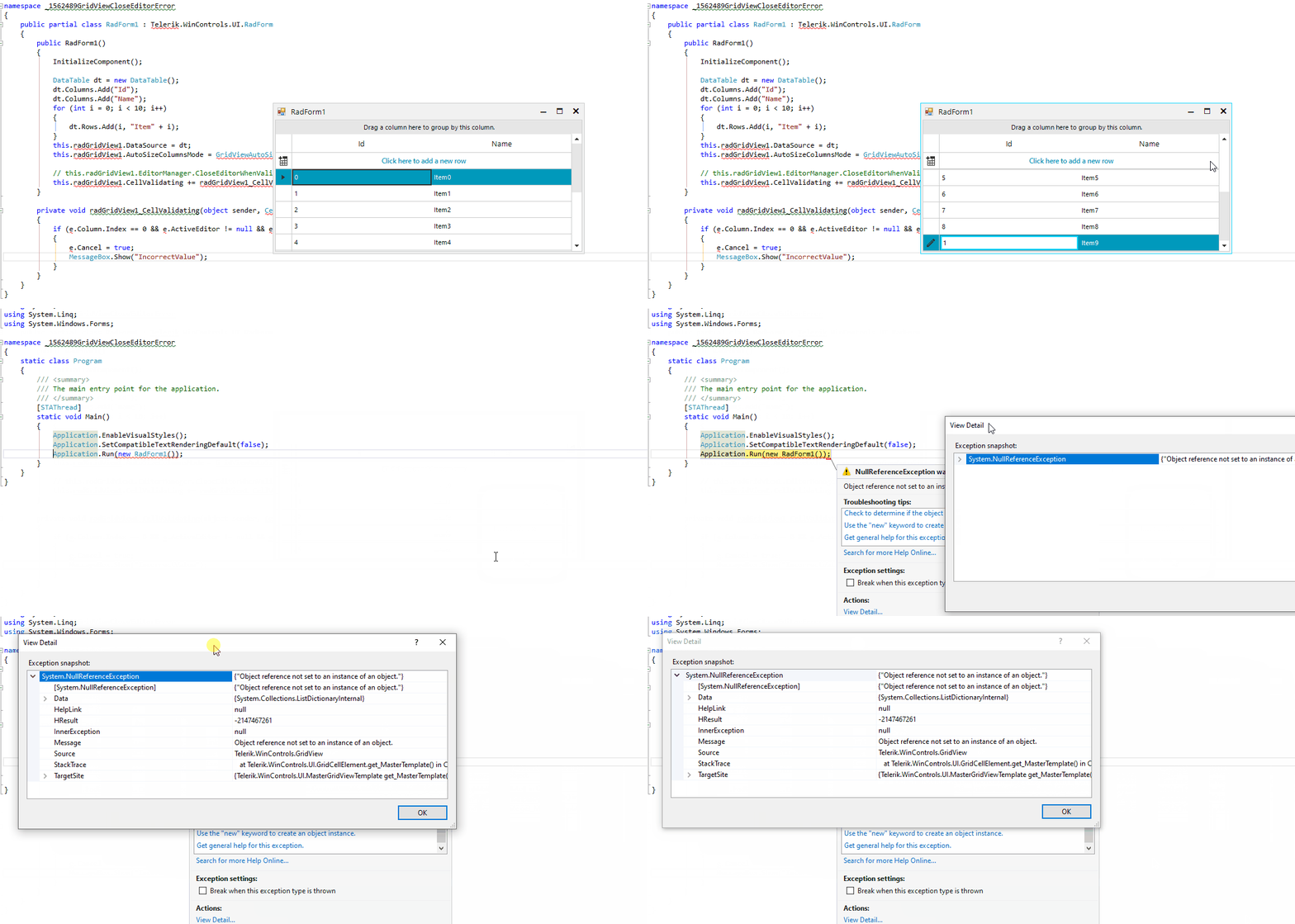
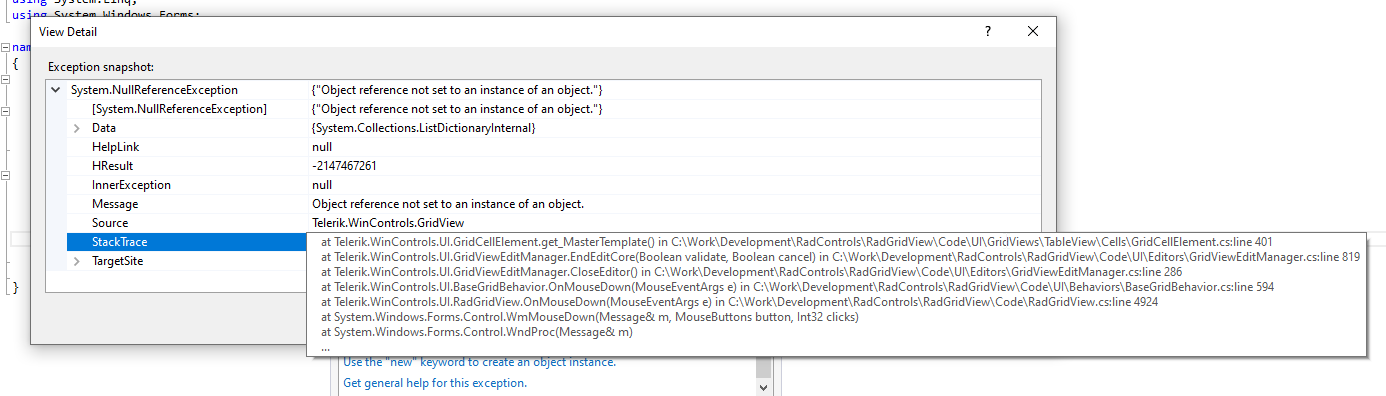
Workaround:
        public class CustomGridView : RadGridView
        {
            public override string ThemeClassName
            {
                get
                {
                    return typeof(RadGridView).FullName;
                }
            }

            protected override void OnMouseDown(MouseEventArgs e)
            {
             RadScrollBarElement scrollbar=   this.GridViewElement.ElementTree.GetElementAtPoint ( e.Location) as RadScrollBarElement;
             if (scrollbar!=null && this.IsInEditMode)
             {
                    this.EditorManager.CloseEditorWhenValidationFails = false;
                    this.EditorManager.CloseEditor();
                    return;
             }
                base.OnMouseDown(e);
            }
        }
Run the attached project and click List then Export.
Expected:
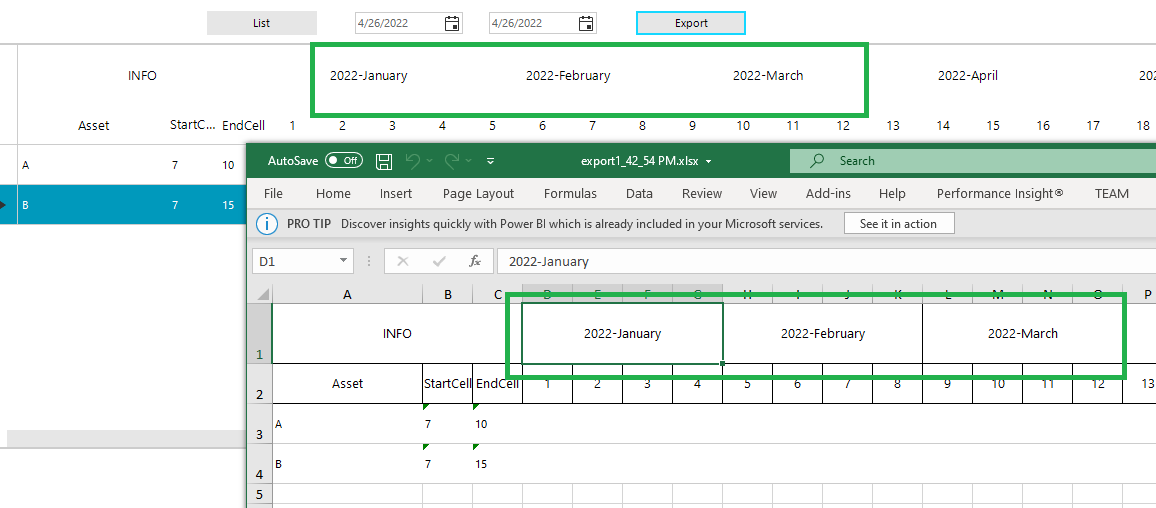
Actual:
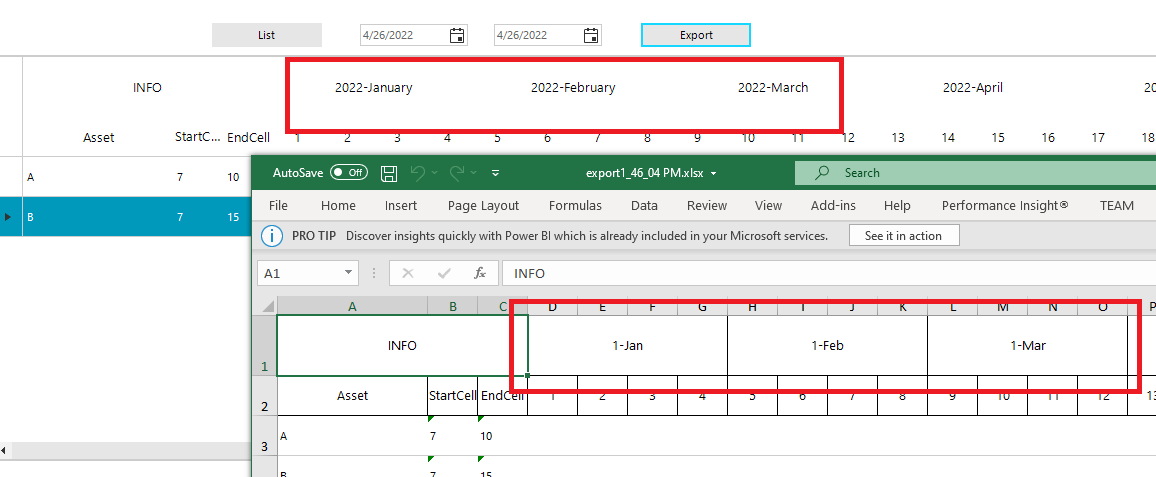
Workaround:
    Private Sub RadButton2_Click(sender As Object, e As EventArgs) Handles RadButton2.Click
        Dim spreadExporter As GridViewSpreadExport = New GridViewSpreadExport(gvAssetSchedule)
        AddHandler spreadExporter.CellFormatting, AddressOf spreadExporter_CellFormatting
        Dim exportRenderer As New SpreadExportRenderer()
        spreadExporter.ExportVisualSettings = True
        Dim filename = "..\..\export" & DateTime.Now.ToLongTimeString().Replace(":", "_") & ".xlsx"
        spreadExporter.RunExport(filename, exportRenderer)
        Process.Start(filename)
    End Sub

    Private Sub spreadExporter_CellFormatting(sender As Object, e As Telerik.WinControls.Export.CellFormattingEventArgs)
        If e.GridCellInfo Is Nothing Then
            Dim selection As CellSelection = e.CellSelection
            Dim range As CellRange = selection.CellRanges(0)
            Dim val = selection.Worksheet.Cells(range.FromIndex.RowIndex, range.FromIndex.ColumnIndex).GetValue()
            Dim format As New CellValueFormat("@")
            selection.Worksheet.Cells(range.FromIndex.RowIndex, range.FromIndex.ColumnIndex).SetFormat(format)
            Dim dt As New DateTime(1900, 1, 1)
            Dim parsedDays = 0
            If Integer.TryParse(val.Value.RawValue, parsedDays) Then
                dt = dt.AddDays(parsedDays)
                selection.Worksheet.Cells(range.FromIndex.RowIndex, range.FromIndex.ColumnIndex).SetValue(dt.Year & "-" & MonthName(dt.Month))
            End If
        End If
    End Sub
Steps to reproduce:
1. Run the sample project and select a row inside the grid
2. Press Ctrl+B
The following error occur:
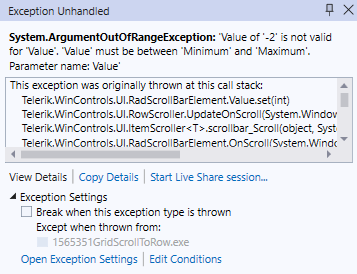
Workaround: set the EnableFastScrolling property to false.
Use the following code snippet:
        public RadForm1()
        {
            InitializeComponent();
            this.radGridView1.Columns.Add("TextColumn");
            this.radGridView1.AutoSizeColumnsMode = GridViewAutoSizeColumnsMode.Fill;

            for (int i = 0; i < 30; i++)
            {
                this.radGridView1.Rows.Add(Guid.NewGuid().ToString());
            }
            this.radGridView1.CellValidating += radGridView1_CellValidating;

            this.radGridView1.EditorManager.CloseEditorWhenValidationFails = false;
        }

        private void radGridView1_CellValidating(object sender, CellValidatingEventArgs e)
        {
            if (e.Value == null || e.Value == "")
            {
                e.Cancel = true;
                RadMessageBox.Show("Value can't be empty!");
            }
        }
Steps:
1. Clear the value of a cell
2. While the editor is active with an empty value, click the vertical scrollbar to trigger scrolling.
Actual: the scrolling is performed and the editor is closed with the previous value no matter when the validation fails and the CloseEditorWhenValidationFails property is set to false.
Expected: the scrolling should be blocked if the validation fails. We should offer the same behavior when scrolling with the mouse wheel, clicking another cell or clicking the vertical scrollbar (or any of its elements).
Workaround:
        public class MyGrid : RadGridView
        {
            public override string ThemeClassName
            {
                get
                {
                    return typeof(RadGridView).FullName;
                }
            }

            protected override void OnMouseDown(MouseEventArgs e)
            {
                RadScrollBarElement scrollBarAtPoint = GetScrollbarElementAtPoint<RadScrollBarElement>(this.GridViewElement.ElementTree, e.Location) as RadScrollBarElement;
                GridViewEditManager editManager = this.EditorManager;
                if (scrollBarAtPoint != null && this.ActiveEditor != null && !editManager.CloseEditorWhenValidationFails)
                {
                    bool isClosed = editManager.CloseEditor();
                    if (!isClosed)
                    {
                        return;
                    }
                }
                base.OnMouseDown(e);
            }

            internal T GetScrollbarElementAtPoint<T>(RadElementTree componentTree, Point point) where T : RadElement
            {
                if (componentTree != null)
                {
                    RadElement elementUnderMouse = componentTree.GetElementAtPoint(point);

                    while (elementUnderMouse != null)
                    {
                        T item = elementUnderMouse as T;

                        if (item != null)
                        {
                            return item;
                        }

                        elementUnderMouse = elementUnderMouse.Parent;
                    }
                }

                return null;
            }
        }

C#. net core 6, winforms application, TekerikNuGet3 package source, UI.for.WinForms.AllControls.NetCore package 2022.2.622
I am trying to export selected cells from a RadGridView as a csv file.
When using "var exporter = new ExportToCSV(Dgv)" then "exporter.RunExport(fileName);" writes the csv file correctly. It exports every cell.
It doesn't support exporting selections so I wrote a function to do this . The one below is what I used in my project to test what I was doing. It initially writes the csv to a worksheet and wrote that using formatprovider to file, then I just created a stringbuilder adding quotes and appended that to the file afterwards.
Writing the worksheet, the csv values haven't been quoted, plus number fields have had leading zeros removed which proves to be a problem when telephone numbers are stored in a field.
So I googled and found the Settings property which is there to set csv options. But they are private, not public therefore I can't set up the csv propertly.
private void radButton1_Click(object sender, EventArgs e)
{
var workbook = new Workbook();
var worksheet = workbook.Worksheets.Add();
var rowIndex = 0;
var columnIndex = -1;
var sb = new StringBuilder();
var prevColumnIndex = -1;
// ForEach cell are accessed vertically then horizontally.
foreach (var cell in Dgv.SelectedCells)
{
// Cell is included in selection even if it's invisible
// so check visibility and ignore if it isnt
if (!cell.ColumnInfo.IsVisible) continue;
// At bottom of column, rownum will change. Watch for this
// and reset x and y values
var rowNum = cell.RowInfo.Index;
if (rowNum != prevColumnIndex)
{
prevColumnIndex = rowNum;
rowIndex = 0;
columnIndex++;
sb.AppendLine("");
}
else if (!string.IsNullOrEmpty(sb.ToString()))
sb.Append(",");
var value = cell.Value;
worksheet.Cells[columnIndex, rowIndex++ ].SetValue(value.ToString());
sb.Append($"\"{value.ToString()}\"");
}
var fileName = @"C:\temp\SampleFile.csv";
IWorkbookFormatProvider formatProvider = new CsvFormatProvider();
using var output = new FileStream(fileName, FileMode.Create);
formatProvider.Export(workbook, output);
output.Close();
// Write contents of sb to the file for comparison sake
File.AppendAllText(fileName, sb.ToString());
}


When you use var, object is assumed. Of course, the object contains a GridViewCellInfo, but you have to cast it first to use one of its members.
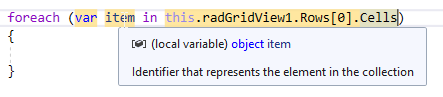
The goal is to prevent unnecessary casts.
Steps to reproduce:
1. Please run the attached sample project
2. Filter grid so only one row is left
3.Copy the first cell with the content menu. The following error occurs:
************** Exception Text **************
System.Collections.Generic.KeyNotFoundException: The given key was not present in the dictionary.
   at System.Collections.Generic.Dictionary`2.get_Item(TKey key)
   at Telerik.WinControls.UI.MasterGridViewTemplate.CopySelected(GridViewCellInfo[] cells, String format, Boolean cut, Boolean cutOperation, StringBuilder content) in C:\Work\Development\RadControls\RadGridView\Code\Data\MasterGridViewTemplate.cs:line 1491
   at Telerik.WinControls.UI.MasterGridViewTemplate.ProcessContent(String format, Boolean cut, Boolean cutOperation) in C:\Work\Development\RadControls\RadGridView\Code\Data\MasterGridViewTemplate.cs:line 1291
   at Telerik.WinControls.UI.MasterGridViewTemplate.CopyContent(Boolean cut) in C:\Work\Development\RadControls\RadGridView\Code\Data\MasterGridViewTemplate.cs:line 1256
   at Telerik.WinControls.UI.MasterGridViewTemplate.Copy() in C:\Work\Development\RadControls\RadGridView\Code\Data\MasterGridViewTemplate.cs:line 2066
   at Telerik.WinControls.UI.GridDataCellElement.ItemCopy_Click(Object sender, EventArgs e) in C:\Work\Development\RadControls\RadGridView\Code\UI\GridViews\TableView\Cells\GridDataCellElement.cs:line 380
   at Telerik.WinControls.RadElement.OnClick(EventArgs e) in C:\Work\Development\RadControls\RadControl\TPF\Element\RadElement.cs:line 5096
   at Telerik.WinControls.UI.RadButtonItem.OnClick(EventArgs e) in C:\Work\Development\RadControls\RadControlsUI\UIElements\Buttons\RadButtonItem.cs:line 566
   at Telerik.WinControls.UI.RadMenuItem.OnClick(EventArgs e) in C:\Work\Development\RadControls\RadControlsUI\Menu\RadMenuItem.cs:line 685
   at Telerik.WinControls.RadElement.DoClick(EventArgs e) in C:\Work\Development\RadControls\RadControl\TPF\Element\RadElement.cs:line 5160
   at Telerik.WinControls.RadElement.RaiseBubbleEvent(RadElement sender, RoutedEventArgs args) in C:\Work\Development\RadControls\RadControl\TPF\Element\RadElement.cs:line 4274
   at Telerik.WinControls.RadItem.RaiseBubbleEvent(RadElement sender, RoutedEventArgs args) in C:\Work\Development\RadControls\RadControl\TPF\Element\RadItem.cs:line 779
   at Telerik.WinControls.RadElement.RaiseRoutedEvent(RadElement sender, RoutedEventArgs args) in C:\Work\Development\RadControls\RadControl\TPF\Element\RadElement.cs:line 4181
   at Telerik.WinControls.RadElement.DoMouseUp(MouseEventArgs e) in C:\Work\Development\RadControls\RadControl\TPF\Element\RadElement.cs:line 5273
   at Telerik.WinControls.RadElement.CallDoMouseUp(MouseEventArgs e) in C:\Work\Development\RadControls\RadControl\TPF\Element\RadElement.cs:line 5495
   at Telerik.WinControls.ComponentInputBehavior.OnMouseUp(MouseEventArgs e) in C:\Work\Development\RadControls\RadControl\TPF\Control\ComponentInputBehavior.cs:line 75
   at Telerik.WinControls.RadControl.OnMouseUp(MouseEventArgs e) in C:\Work\Development\RadControls\RadControl\TPF\Control\RadControl.cs:line 1206
   at System.Windows.Forms.Control.WmMouseUp(Message& m, MouseButtons button, Int32 clicks)
   at System.Windows.Forms.Control.WndProc(Message& m)
   at System.Windows.Forms.ScrollableControl.WndProc(Message& m)
   at Telerik.WinControls.RadControl.WndProc(Message& m) in C:\Work\Development\RadControls\RadControl\TPF\Control\RadControl.cs:line 1550
   at Telerik.WinControls.UI.RadPopupControlBase.WndProc(Message& m) in C:\Work\Development\RadControls\RadControlsUI\GenericPopup\RadPopupControlBase.cs:line 795
   at System.Windows.Forms.Control.ControlNativeWindow.OnMessage(Message& m)
   at System.Windows.Forms.Control.ControlNativeWindow.WndProc(Message& m)
   at System.Windows.Forms.NativeWindow.Callback(IntPtr hWnd, Int32 msg, IntPtr wparam, IntPtr lparam)
In this case, the GridViewCheckBoxColumn is nullable bool? property and the ThreeState property is set to true. When we try to use the filter context menu to filter the cell by null values, the filter is not applied.
Use the following setup:
            DataTable dt = new DataTable();
            dt.Columns.Add("Id", typeof(int));
            dt.Columns.Add("Name", typeof(string));
            for (int i = 0; i <5; i++)
            {
                dt.Rows.Add(i, "Row"+i);
            }
            this.radGridView1.DataSource = dt;
            this.radGridView1.AutoSizeColumnsMode = GridViewAutoSizeColumnsMode.Fill;
            this.radGridView1.ClipboardPasteMode = GridViewClipboardPasteMode.Enable;
1. Copy the entire content of a random row.
2. Pin another row to the top
3. Paste the clipboard data to the pinned row
Expected result: the content is successfully pasted in the pinned row.
Observed result: the pinned row disappears.
When paging is enabled in RadGridView and a row is pinned, it is visible among all pages. However, it is possible to paste in it only from the page to which it originally belongs.
Use the following setup:
            DataTable dt = new DataTable();
            dt.Columns.Add("Id", typeof(int));
            dt.Columns.Add("Name", typeof(string));
            for (int i = 0; i < 100; i++)
            {
                dt.Rows.Add(i, "Row" + i);
            }
            this.radGridView1.DataSource = dt;
            this.radGridView1.AutoSizeColumnsMode = GridViewAutoSizeColumnsMode.Fill;
            this.radGridView1.ClipboardPasteMode = GridViewClipboardPasteMode.EnableWithNotifications;

            this.radGridView1.EnablePaging = true;
1. Copy the entire content of a random row
2. Navigate to another page and pin a row
3. Change the page and try to paste the clipboard content to the pinned row
Expected behavior: the content is successfully pasted no matter of the current page
Actual behavior: the content is pasted only if the use navigates to the page to which the pinned row originally belongs

Steps to reproduce:
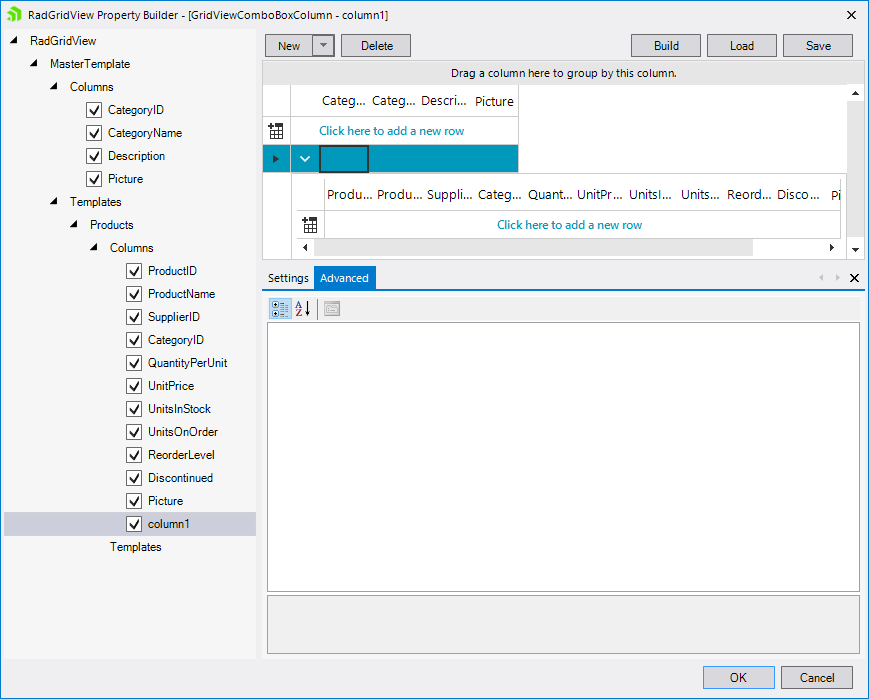
1. Add a RadGridView with AutoGenerateHierarchy set to true.
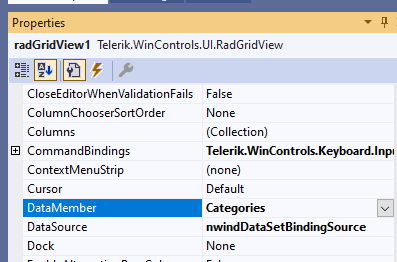
2. Set the DataSource to Northwind DataSet and DataMember to Categories:
3. Open the grid's Property Builder and add a combo column for the child level:
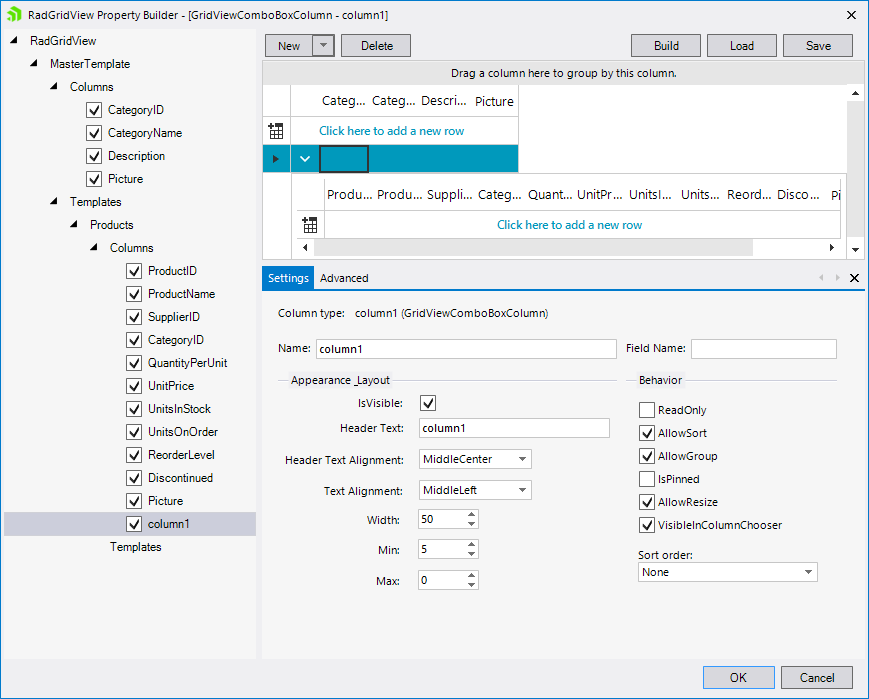
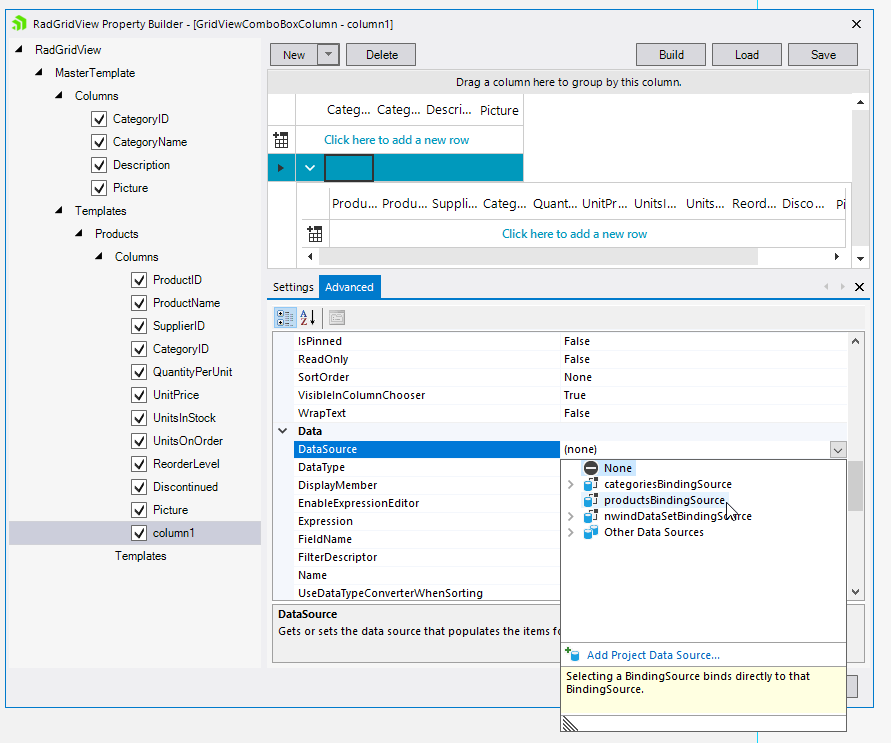
4. Set the column's DataSource property.
Expected behavior: DataSource collection is properly set:
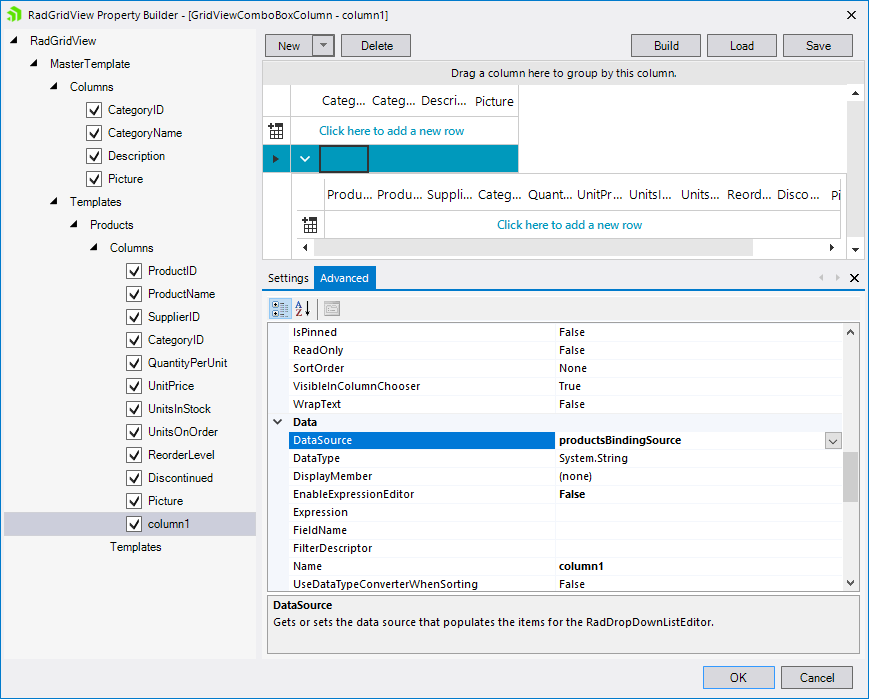
Actual behavior: blank property grid with settings for the column: