Please refer to the attached sample project and follow the steps from the grid file:
Steps to reproduce:
1. Filter the checkbox column to only show unchecked rows
2. Enter "5" for filtering the Name column
3. Click the checkbox column on the bottom row
4. Remove filter value in the Name column
This will result in the unrelated record showing as checked. Scrolling or changing sorting may refresh the cell. If the filter is cleared by using the No filter menu option, the problem is not observed
Stack Trace:
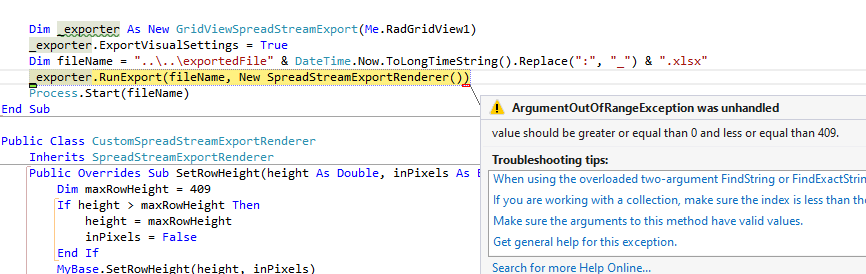
at System.Collections.ArrayList.BinarySearch(Int32 index, Int32 count, Object value, IComparer comparer)
at Telerik.WinControls.UI.TextBoxWrapPanel.BinarySearch(LineInfo line, IComparer comparer)
at Telerik.WinControls.UI.TextBoxNavigator.GetPositionFromOffset(Int32 offset)
at Telerik.WinControls.UI.RadTextBoxControlElement.Select(Int32 start, Int32 length)
at Telerik.WinControls.UI.RadTextBoxControlEditor.EndEdit()
at Telerik.WinControls.UI.GridViewEditManager.EndEditCore(Boolean validate, Boolean cancel)
at Telerik.WinControls.UI.GridViewEditManager.CloseEditor()

- Using a RadGriditem
- Set AllowSearchRow to false as default
- Add a RadButton or something else to toggle AllowSearchRow
- Toggling works as long the "x" in the search mask is not used
When the "x" is used it seems that AllowSearchRow is not set to false because the toggle button has then to be pressed twice to show up the search mask again.
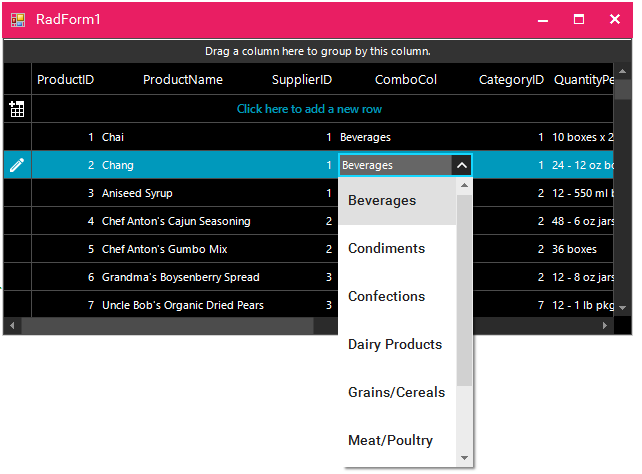
Use the following code snippet:
            ThemeResolutionService.ApplicationThemeName = "MaterialPink";
            radGridView1.ElementTree.EnableApplicationThemeName = false;
            radGridView1.ThemeName = "FluentDark";
Workaround:
        private void radGridView1_CellEditorInitialized(object sender, GridViewCellEventArgs e)
        {
            RadDropDownListEditor ddlEditor = e.ActiveEditor as  RadDropDownListEditor;
            if (ddlEditor != null)
            {
                RadDropDownListEditorElement el = ddlEditor.EditorElement as RadDropDownListEditorElement;
                el.Popup.ElementTree.EnableApplicationThemeName = false;
                el.Popup.ThemeName = this.radGridView1.ThemeName;
            }
        }
Hi There,
This call is only a nice to have, it is not critical at all. It is just a slight annoyance when building the Grid's columns - especially when there are many columns to adjust. My workflow is usually as follow.
Add all the columns needed, then after that I will run through all the columns and want to set the widths. But my speed is broken because I can't tab between the 3 width properties: Width, Min Width, Max Width. I have to click to put focus the the next value.
If possible, please can you correct the tab indexes?
Thank you
Kind Regards
Ben
PS. You may close this ticket immediately - this is only a request.
Please use the attached sample project.
If I press F2 key and browse the ComboBox, the control works perfectly, better than the Microsoft Windows Forms ComboBox.
Part by part:
- Telerik.WinControls.UI.RadGridView: it is very annoying to receive this information.
- 4;3: this information is very important due to the screen reader says the quantity of rows and columns has the grid.
- Tabla: this information is from the screen reader and the operating system which inform the control type I am browsing.
Testing other controls I have found more accessibility troubles, but I think that it would take too long for this email.
There are situations where SelectedRows won't return the number of rows preselected when using Begin/EndUpdate even though it seems like there's a row selected in the UI. By preselected I mean the row that looks selected after the rows has been added. This bug has caused some problems for us because the user tried some action on a row they thought was preselected and it would fail.
One situation I found where this bug can be reproducted is by using SortOrder in combination of Begin/EndUpdate. There are probably more situations but I hope this one will let you find the underlying bug.
The attached project contains a simple form with a RadGridView which will contain a list of persons. The list is populated by this method:
public void PopulateGridView(List<Person> persons)
{
	PersonGridView.BeginUpdate();
	PersonGridView.DataSource = persons;
	PersonGridView.EndUpdate();
	PersonGridView.Columns[nameof(Person.LastName)].SortOrder = RadSortOrder.Ascending;
}
There are two buttons: "Step one" and "Step two". The first will mimick a situation where the user search a database for persons and none will be found. By clicking the "Get selected rows" you will see that the SelectedRows will return zero rows which is correct.
But when you afterwards click "Step two" (which will add five rows) it seems like there's one row preselected. I would expect the SelectedRows to return that row but by clicking "Get selected rows" again you will see that the returned rows are zero still. The CurrentRow, however is set to the preselected row as expected.
If you start by clicking "Step two" the SelectedRows actually returns the correct rows. Quite strange :-)
I know this is a very small issue and can be avoided. But as I mentioned there are other situations where this problem occurs and it's quite hard to figure out exactly what causes it.
Thank you for your help.
Best regards
Ulrik Skovenborg
Follow the steps:
1.Group by Description.
2. Expand the groups
3. Sort by Id
4. Try expanding the hierarchical level. You will notice that some of the rows disappear.
Please refer to the attached gif file illustrating the steps for replicating the issue.
Please run the sample project and follow the steps:
1.Open the attached solution in Visual Studio - I am using VS 2022.2.Select the Grid.
3.Edit the templates.
4.For gridViewTemplate1, set SelectNewRowasCurrent to false.
5.Close the editor.
6.Close the WinForms designer.
7.Open the WinForms designer again.
Use the following code snippet:
public RadForm1()
{
    InitializeComponent();

    GridViewDecimalColumn idColumn = new GridViewDecimalColumn("Id");
    this.radGridView1.Columns.Add(idColumn);
    GridViewTextBoxColumn nameColumn = new GridViewTextBoxColumn("Name");
    this.radGridView1.Columns.Add(nameColumn);
    GridViewDateTimeColumn dateColumn = new GridViewDateTimeColumn("Date");
    dateColumn.FilteringMode = GridViewTimeFilteringMode.Date;
    dateColumn.Format = DateTimePickerFormat.Custom;
    dateColumn.CustomFormat = "dd/MM/yyyy";
    dateColumn.FormatString = "{0:dd/MM/yyyy}";
    this.radGridView1.Columns.Add(dateColumn);
    this.radGridView1.AutoSizeColumnsMode = GridViewAutoSizeColumnsMode.Fill;

    for (int i = 0; i < 50; i++)
    {
        this.radGridView1.Rows.Add(i,"Row"+i,DateTime.Now.AddDays(i));
    }

    this.radGridView1.EnableFiltering = true;
    this.radGridView1.ShowHeaderCellButtons = true;
    this.radGridView1.ShowFilteringRow = false;

    this.radGridView1.FilterExpressionChanged += RadGridView1_FilterExpressionChanged;
}

private void RadGridView1_FilterExpressionChanged(object sender, FilterExpressionChangedEventArgs e)
{
    Console.WriteLine(e.FilterExpression);
}
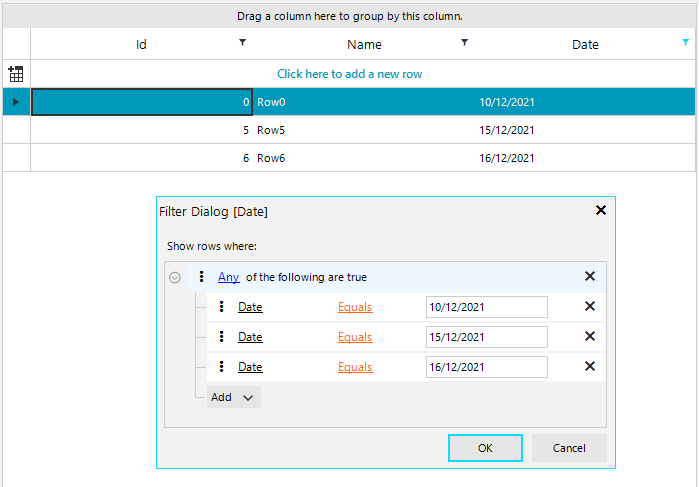
If I use the calendar control then the sequence works:
Click the filter button
Click Available filters
Click Equals
Click the calendar button in the value field
Click on December 10, 2021
But if I do not use the calendar control then it does not work. This sequence produces no results:
Click the filter button
Click Available filters
Click Equals
Click on the day component of the value field
Type in 10
Click OK
Workaround:
        private void RadGridView1_CreateCompositeFilterDialog(object sender, GridViewCreateCompositeFilterDialogEventArgs e)
        {
            e.Dialog = new CustomCompositeDataFilterForm();
        }

        public class CustomCompositeDataFilterForm : CompositeDataFilterForm
        {
            protected override void OnClosing(CancelEventArgs e)
            {
                base.OnClosing(e);
                if (GridFilterCellElement.ValidateUserFilter(this.FilterDescriptor))
                {
                    CompositeFilterDescriptor cfd = this.FilterDescriptor as CompositeFilterDescriptor;
                    if (cfd != null)
                    {
                        foreach (FilterDescriptor fd in cfd.FilterDescriptors)
                        {
                            TrimTimePart(fd);
                        }
                    }
                    else
                    {
                        TrimTimePart(this.FilterDescriptor);
                    }

                }
            }

            private void TrimTimePart(FilterDescriptor filterDescriptor)
            {
                CompositeFilterDescriptor cfd = filterDescriptor as CompositeFilterDescriptor;
                if (cfd != null)
                {
                    foreach (FilterDescriptor fd in cfd.FilterDescriptors)
                    {
                        TrimTimePart(fd);
                    }
                }
                else
                {
                    DateTime dateValue = DateTime.MinValue;
                    if (DateTime.TryParse(filterDescriptor.Value + "", out dateValue))
                    {
                        dateValue = dateValue.Date;
                       filterDescriptor.Value = dateValue;
                    }
                }
            }
        }

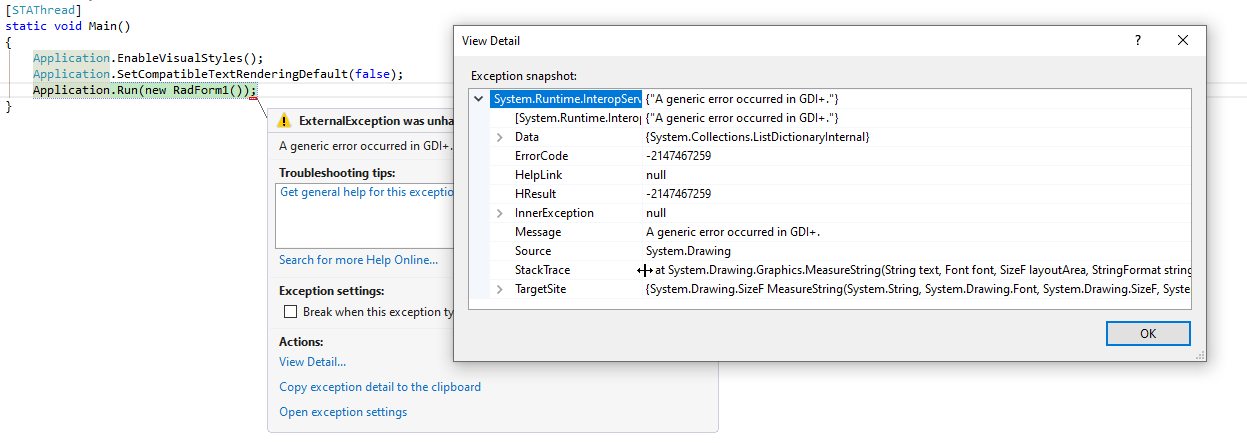
To reproduce:
        public RadForm1()
        {
            InitializeComponent();

            string txt = "what follows is test characters (some of) which should cause error:  เปลี่ยน UPS ที่ห้อง Truck scale เนื่องจากเมื่อวันพฤหัสที่ 13 มีการออฟเบรกเกอร์ที่ ฺฺB/H แต่ว่า เครื่องคอมพิวเตอร์ที่ T/S ดับ ตัว UPS ไม่ทำงาน ทำให้ข้อมูลขณะนั้นหายไป   ";
            this.label1.Text = txt; // No error

            Font font = this.label1.Font;// new Font("Segoe UI", 9.5f, FontStyle.Regular);
            this.radLabel1.Font = font;
            this.radLabel1.Text = txt; //GDI error
        }
Workaround:
this.radLabel1.UseCompatibleTextRendering = false;



Use this XML layout:
this.radGridView1.LoadLayout(@"..\..\..\Layout.xml");
<RadGridView Padding="0, 0, 0, 1" Cursor="Default" TabIndex="49">
<MasterTemplate EnableGrouping = "True" AllowEditRow="False" AllowDeleteRow="False" AllowAddNewRow="False" EnableFiltering="True" AutoExpandGroups="True">
<Columns>
<Telerik.WinControls.UI.GridViewTextBoxColumn Width="100" FieldName="JobID" Name="JobID" IsAutoGenerated="True" IsVisible="True" HeaderText="JobID" />
<Telerik.WinControls.UI.GridViewTextBoxColumn Width="100" FieldName="CustomerID" Name="CustomerID" IsAutoGenerated="True" IsVisible="True" HeaderText="CustomerID" />
<Telerik.WinControls.UI.GridViewTextBoxColumn Width="285" FieldName="StatusID" Name="StatusID" IsAutoGenerated="True" IsVisible="True" HeaderText="StatusID" />
<Telerik.WinControls.UI.GridViewTextBoxColumn Width="100" FieldName="UnitID" Name="UnitID" IsAutoGenerated="True" IsVisible="True" HeaderText="UnitID" />
<Telerik.WinControls.UI.GridViewTextBoxColumn Width="100" FieldName="OperatorID" Name="OperatorID" IsAutoGenerated="True" IsVisible="True" HeaderText="OperatorID" />
<Telerik.WinControls.UI.GridViewTextBoxColumn Width="100" FieldName="JobTypeID" Name="JobTypeID" IsAutoGenerated="True" IsVisible="True" HeaderText="JobTypeID" />
<Telerik.WinControls.UI.GridViewTextBoxColumn Width="100" FieldName="JobCatID" Name="JobCatID" IsAutoGenerated="True" IsVisible="True" HeaderText="JobCatID" />
<Telerik.WinControls.UI.GridViewDateTimeColumn Width="100" FieldName="StartTime" Name="StartTime" IsAutoGenerated="True" IsVisible="True" HeaderText="StartTime">
<FilterDescriptor xsi:type="Telerik.WinControls.Data.DateFilterDescriptor" Value="" IgnoreTimePart="False" PropertyName="StartTime" Operator="IsNotNull" IsFilterEditor="True" xmlns:xsi="http://www.w3.org/2001/XMLSchema-instance" />
</Telerik.WinControls.UI.GridViewDateTimeColumn>
<Telerik.WinControls.UI.GridViewDateTimeColumn Width="100" FieldName="FinishTime" Name="FinishTime" IsAutoGenerated="True" IsVisible="True" HeaderText="FinishTime" />
<Telerik.WinControls.UI.GridViewDateTimeColumn Width="100" FieldName="CreateDate" Name="CreateDate" SortOrder="Descending" IsAutoGenerated="True" IsVisible="True" HeaderText="CreateDate" />
<Telerik.WinControls.UI.GridViewDateTimeColumn Width="100" FieldName="StatusJobDate" Name="StatusJobDate" IsAutoGenerated="True" IsVisible="True" HeaderText="StatusJobDate" />
<Telerik.WinControls.UI.GridViewTextBoxColumn Width="100" FieldName="UserID" Name="UserID" IsAutoGenerated="True" IsVisible="True" HeaderText="UserID" />
<Telerik.WinControls.UI.GridViewTextBoxColumn DataType="System.Guid" Width="100" FieldName="TableKey" Name="TableKey" IsAutoGenerated="True" IsVisible="False" HeaderText="TableKey" />
</Columns>
<FilterDescriptors>
<Telerik.WinControls.Data.DateFilterDescriptor Value="" IgnoreTimePart="False" PropertyName="StartTime" Operator="IsNotNull" IsFilterEditor="True" />
</FilterDescriptors>
<SortDescriptors>
<Telerik.WinControls.Data.SortDescriptor PropertyName="CreateDate" Direction="Descending" />
</SortDescriptors>
<ViewDefinition xsi:type="Telerik.WinControls.UI.TableViewDefinition" xmlns:xsi="http://www.w3.org/2001/XMLSchema-instance" />
</MasterTemplate>
</RadGridView>
Workaround:
public class CustomGridView : RadGridView
{
    protected override GridViewLayoutSerializer CreateGridViewLayoutSerializer(Telerik.WinControls.XmlSerialization.ComponentXmlSerializationInfo info)
    {
        return new CustomGridViewLayoutSerializer(info);
    }
    public override string ThemeClassName
    {
        get
        {
            return typeof(RadGridView).FullName;
        }
    }
}

public class CustomGridViewLayoutSerializer : GridViewLayoutSerializer
{
    public CustomGridViewLayoutSerializer(ComponentXmlSerializationInfo componentSerializationInfo) : base(componentSerializationInfo)
    {
    }

    protected override bool ProcessReaderAttribute(System.Xml.XmlReader reader, object parentObject, object toRead, PropertyDescriptor property)
    {
        if (toRead is FilterDescriptor && reader.Value == string.Empty)
        {
            object val = reader.Value;
            if (property.ComponentType == typeof(DateFilterDescriptor))
            {
                val = null;
            }

            this.SetPropertyValue(property, toRead, val);
            return true;
        }

        return base.ProcessReaderAttribute(reader, parentObject, toRead, property);
    }
}
Please refer to the sample project and open the Home form. The attached gif file illustrates how to reproduce the error.
Workaround: define the grid relations via code.
Call the EndPrint method after the printing.
this.radGridView1.Print(true, this.radPrintDocument1);
(this.radGridView1 as IPrintable).EndPrint(null, null);

Use the following code snippet:
            GridViewDateTimeColumn orderDate = this.radGridView1.Columns["OrderDate"] as GridViewDateTimeColumn;
            orderDate.Format = DateTimePickerFormat.Custom;
            orderDate.CustomFormat = "dd-MM-yyyy";
            orderDate.FormatString = "{0:dd-MM-yyyy}";


            GridViewDateTimeColumn shippedDate = this.radGridView1.Columns["ShippedDate"] as GridViewDateTimeColumn;
            shippedDate.Format = DateTimePickerFormat.Custom;
            shippedDate.CustomFormat = "dd-MM-yyyy";
            shippedDate.FormatString = "{0:dd-MM-yyyy}";
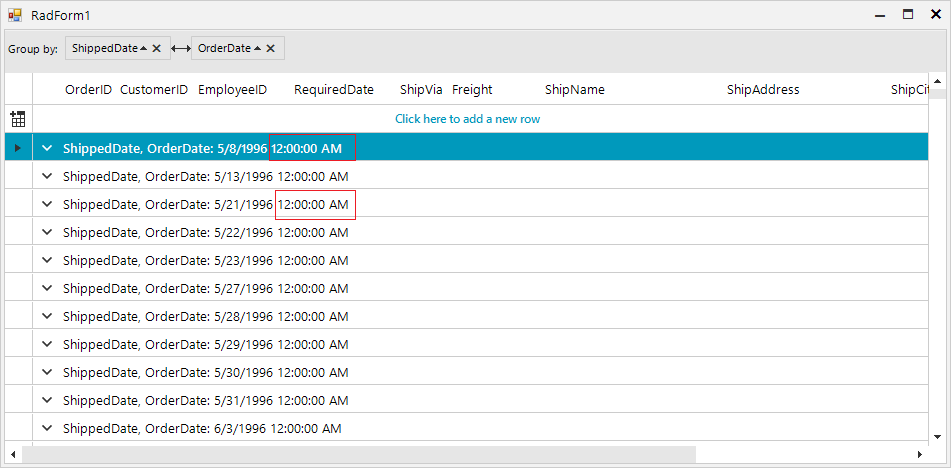
When the grid is grouped by a column with a specific format, it should be taken in consideration by the group row as well.